
Exporting to OMSI 2 and Wayline Studio
One folder per object, low poly, and how to place them in your map.
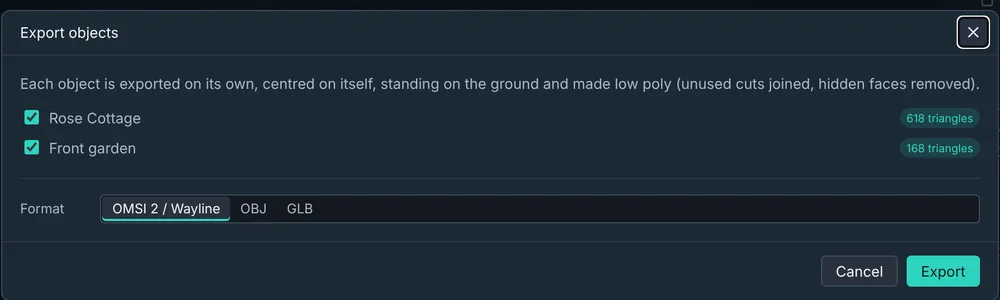
Choose File → Export for OMSI 2 / Wayline Studio (Ctrl+E). Tick the objects to export and pick the format.
What you get
Each object gets its own folder:
Rose_Cottage/
  Rose_Cottage.sco
  model/Rose_Cottage.o3d
  texture/*.bmp
Copy the folders into OMSI 2\Sceneryobjects\ (for example Sceneryobjects\Wayline\). They appear in the OMSI editor under Wayline Object Builder › Buildings, and Wayline Studio lists them in its object library.
Low poly, automatically
Every export is made as light as possible: hidden faces are left out, flat neighbouring faces with the same look are joined back together, and points on straight lines are removed. The export window shows each object's triangle count; anything over about 5000 is flagged as heavy for OMSI.
Objects are exported centred on themselves and standing on the ground, so they're easy to place.
Placing in your map
Traced buildings were turned square to the grid. Properties shows the angle the building sits at on the map: rotate it by that much when you place it, and it lines up with the satellite photo again.
Other formats
OBJ and GLB export the same low-poly objects with baked textures, for Blender and other 3D apps.