
The tools
Every tool on the ribbon, its key, and how dragging and snapping work.
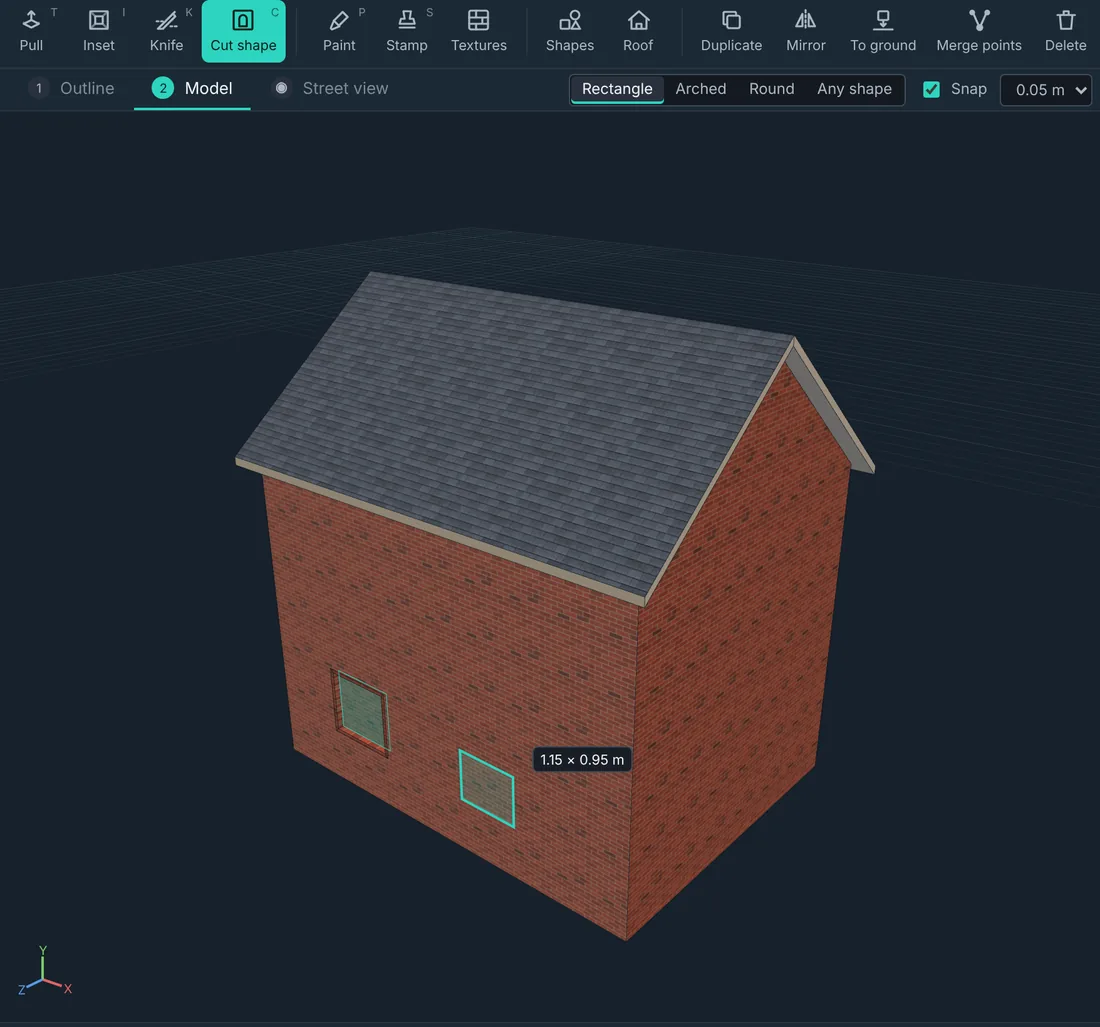
Every tool works by dragging in the view. Numbers are optional: Properties on the right shows sizes and positions, and you can type into them.
| Tool | Key | What it does |
|---|---|---|
| Select | Q | Click a face; Shift-click adds more. Click another object to switch to it. |
| Move | W | Drag an arrow to move along it, or the square to slide on the ground. |
| Rotate | E | Drag a ring to turn the selection. Turns snap to 15°. |
| Scale | R | Drag a handle to stretch, the centre to scale evenly. Ctrl keeps the far side still. |
| Pull | T | Drag a face out (bays, porches, chimneys) or in (window reveals). |
| Inset | I | Drag across a face to shrink it inside itself, leaving a border (frames, parapets). |
| Knife | K | Click from one edge of a face to another to cut it. Ctrl-click cuts all the way round at that height. |
| Cut shape | C | Drag a rectangle, arched or round shape on a face, or click out any shape. |
| Paint | P | Paint colour or a texture onto a face. |
| Stamp | S | Drag a box on a face to place an image there. |
Faces, edges or points
With Select, Move, Rotate and Scale, the buttons at the top of the view choose what a click grabs: Faces, Edges or Points. Use Edges to raise a roof ridge, Points to pull out one corner.
Snapping
Moves, cuts and sizes snap to the step shown at the top right (1 cm to 1 m). Hold Alt while dragging for free movement, or press G to turn snapping off.
The arrange buttons
- Duplicate (Ctrl+D) copies the selected pieces, or the whole object when nothing is selected.
- Mirror flips pieces left to right or front to back.
- To ground stands them on the ground.
- Merge points joins selected points into one.
- Delete removes the selected faces.
Getting around
Right-drag to orbit, middle-drag (or Shift+right-drag) to pan, and use the wheel to zoom. F frames the selection and Home frames the whole object. View switches between 3D, Front, Side and Top.